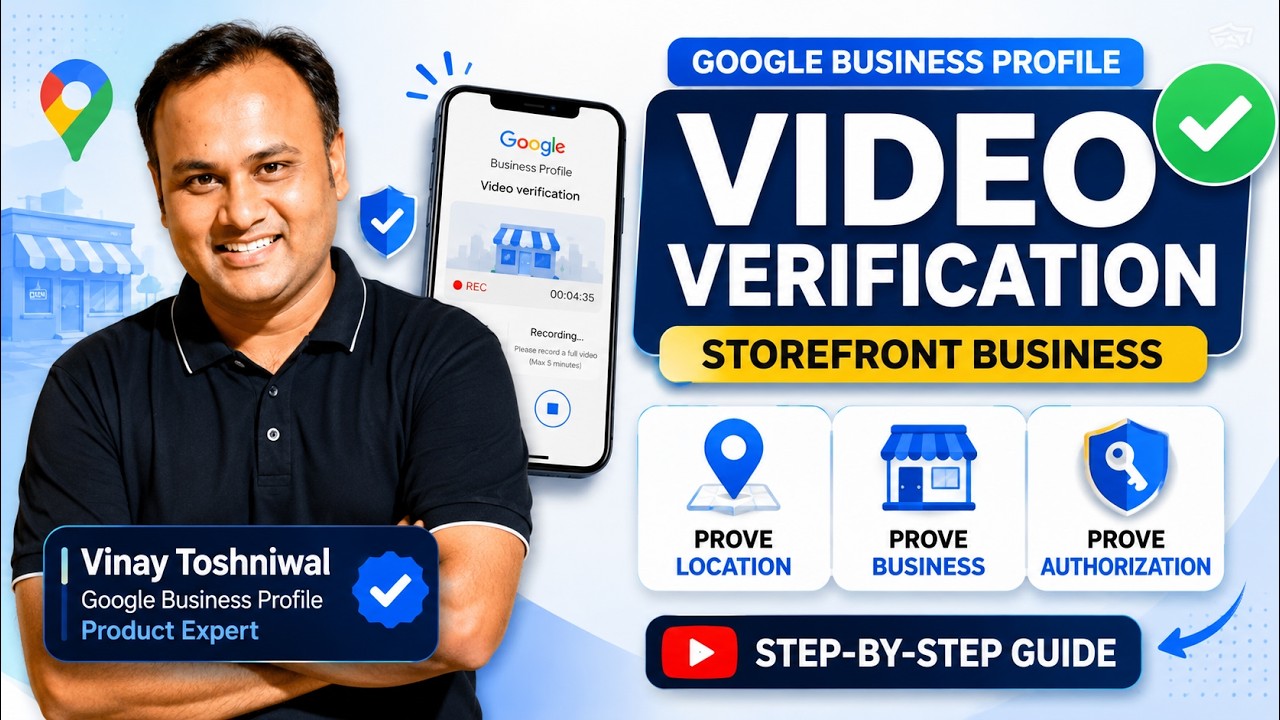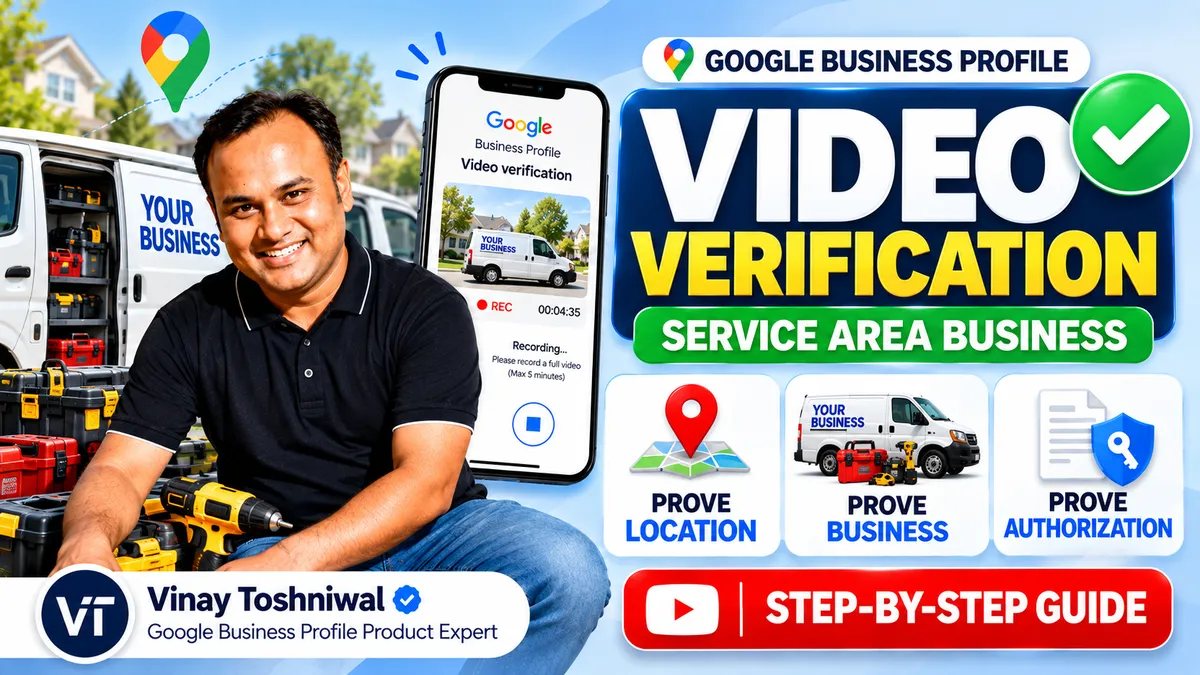
If your Google Business Profile has been asked to complete Business Video Verification, and you operate a Service Area Business (SAB), you're in the right place.
Unlike storefront businesses, Service Area Businesses don't serve customers at a physical location that's open to the public. Because of this, the video verification process is different, and many legitimate businesses fail simply because they don't know what Google expects to see.
After completing multiple Google Business Profile video verifications and working with businesses across different industries, I've put together this step-by-step guide to help Service Area Businesses understand what to show during video verification and improve their chances of getting verified successfully.
Important: This guide is only for Service Area Businesses (SABs). If customers visit your business location, follow my separate guide for Storefront Businesses, as the verification process is different.
Watch the Complete Video Guide
A dedicated video walkthrough for Service Area Businesses is coming soon. This article covers the full process in the meantime, with additional explanations, practical tips, and best practices.
What Is a Service Area Business?
A Service Area Business (SAB) is a business that travels to customers instead of serving them at a customer-facing location. Common examples include:
- Plumbers
- Electricians
- Locksmiths
- Garage Door Companies
- HVAC Contractors
- Packers & Movers
- Pest Control Services
- Cleaning Services
- Mobile Car Detailing
- Appliance Repair
- Roofing Contractors
- Landscapers
- Mobile Pet Groomers
- Home Healthcare Providers
These businesses generally hide their address on Google Business Profile and define a service area instead.
What Is Google Trying to Verify?
Although the recording process may seem complicated, Google's objective is straightforward. Your video should clearly demonstrate three things:
- Your business genuinely operates within the claimed service area.
- Your business actually exists and performs the services listed on your profile.
- You are authorized to manage and represent the business.
Everything you record should help prove one or more of these three points.
Before You Record Your Video
Preparation is one of the most important parts of successful verification. Before you begin recording, make sure everything is ready.
Verify That Your Business Complies with Google's Guidelines
A perfect video cannot fix a profile that violates Google's policies. Before recording, review your:
- Business name
- Business category
- Service areas
- Phone number
- Website
- Business information
Your profile should accurately represent your business.
Choose the Right Recording Location
Unlike storefront businesses, Service Area Businesses have more flexibility. Ideally, record:
- Near your business address
- Within approximately two hours' driving distance of your business address
- At a genuine customer location within your service area (where appropriate)
Wherever you record, try to include:
- An official street sign
- A nearby business displaying its name and address
- Enough space to safely show your vehicle, tools, equipment, and documents
Prepare Everything Before Recording
Arrange all your business materials before you begin. This may include:
- Branded vehicle
- Business licence
- Registration certificate
- Insurance documents
- Utility bills
- Customer invoices
- Business cards
- Branded uniforms
- Tools
- Equipment
- Product samples
- Work materials
Having everything ready allows you to record one continuous video without interruptions.
Before You Press Record
Keep these simple tips in mind.
Turn On Location Services
Enable GPS on your phone before starting the recording.
Speaking Is Optional
You don't have to speak, but explaining what you're showing can provide useful context.
Keep the Camera Steady
Move slowly. Google needs enough time to clearly view your documents, equipment, and vehicle.
Record in One Continuous Video
Business Video Verification must be completed in one uninterrupted recording. You cannot pause, edit, or upload a pre-recorded video.
Step 1: Prove Your Location
Begin by proving that you're recording from a genuine location within your service area. Start by recording an official street sign.
Next, show a nearby business displaying both its business name and address. These landmarks help Google confirm your approximate location.
After that, move towards your branded vehicle or the location where you've arranged your business equipment.
Once you've completed these steps, you've successfully demonstrated your location.
Step 2: Prove Your Business Exists
Now show Google that your business genuinely operates. Depending on your business type, record:
- Branded vehicle
- Business licence
- Registration certificate
- Insurance documents
- Customer invoices
- Business cards
- Uniforms
- Tools
- Equipment
- Materials used to perform your services
Whenever possible, prioritize items displaying your business name. For example: instead of showing a plain toolbox, show one with your company branding. Instead of showing generic equipment, show branded equipment or equipment stored in your branded vehicle. Google needs to understand that these items genuinely belong to your business.
Note: Do not create temporary branding solely for verification. Any branding, logo, or business name you show should genuinely represent your business and match your Google Business Profile.
Take your time and ensure every important item is clearly visible. Once you've recorded sufficient evidence, you've completed the second verification objective.
Step 3: Prove You're Authorized
Finally, Google wants to confirm that you're genuinely authorized to represent the business. The easiest way to demonstrate this is by performing actions that only the owner or an authorized employee could normally perform. Examples include:
- Unlock your branded vehicle
- Open the vehicle doors
- Access storage compartments
- Unlock a toolbox
- Retrieve business equipment
- Show genuine business documents
- Turn on your work computer
- Open your invoicing software
- Access customer invoices
- Demonstrate yourself performing your service
Think about an action that someone without legitimate access couldn't perform. That's exactly the kind of evidence Google is looking for. Once you've demonstrated legitimate access, you've completed the final verification requirement.
Review Your Video Before Submitting
Before uploading your recording, watch it carefully. Ask yourself:
- Is every important detail clearly visible?
- Did I prove my location?
- Did I demonstrate that my business exists?
- Did I show authorization?
- Is the video steady?
- Is anything blurry?
If necessary, record it again before submitting. A few extra minutes reviewing your video can save days or even weeks of delays.
Common Mistakes to Avoid
Many Service Area Businesses fail verification because of avoidable mistakes. Some common issues include:
- Recording too quickly
- Forgetting to show an official street sign
- Not showing nearby landmarks
- Poor lighting
- Blurry footage
- Showing generic tools without business branding
- Using temporary branding for verification
- Failing to demonstrate authorization
- Recording outside the service area
- Attempting verification with a profile that doesn't comply with Google's guidelines
Avoiding these mistakes can significantly improve the quality of your submission.
Frequently Asked Questions
Can I record the video at a customer's location?
Yes, provided the location is within your legitimate service area and you can safely demonstrate your business without violating the customer's privacy.
Do I need a branded vehicle?
A branded vehicle is highly recommended because it provides strong proof of your business. If you don't have one, that's okay, just make sure you show other strong evidence, such as business documents, branded tools, invoices, uniforms, or equipment that clearly belongs to your business.
Can I show unbranded tools?
Yes, but whenever possible, include business documents, invoices, uniforms, or other items that clearly connect those tools to your business.
Can I pause the recording?
No. The video must be recorded in one continuous session.
Can I upload a pre-recorded video?
No. Google requires the recording to be created during the verification process.
What happens if my verification fails?
Review your recording carefully and ensure your Google Business Profile fully complies with Google's guidelines before attempting verification again if another opportunity is available.
Final Thoughts
Google Business Profile Video Verification isn't about creating a perfect video. It's about clearly proving three things:
- Your business operates within the claimed service area.
- Your business genuinely exists.
- You're authorized to manage it.
If you prepare your documents, organize your equipment, move slowly while recording, and clearly demonstrate these three points, you'll give your business the best possible chance of passing verification.
I hope this guide helps you successfully complete your Google Business Profile video verification. If you found this article helpful, be sure to watch the complete video once it's published and share it with other Service Area Business owners who may benefit from it.
If you're facing repeated verification failures, profile suspensions, or complex Google Business Profile issues, feel free to contact me through my website. I specialize in helping legitimate businesses navigate Google's verification and reinstatement process.
Profile suspended? See how reinstatement works. You pay only on successful reinstatement.
Get Help Now